
2 būdai: kaip užšifruoti USB diską naudojant „BitLocker Windows 10“ arba be jo
USB drives are easy to carry, have large storage capacity, are secure, and are more commonly used than hard drives. The biggest difference between a USB drive and a hard drive is that it doesn't require a physical drive. Most operating systems can read and write to USB drives without installing additional drivers. For these reasons, USB flash drives are widely used to store various important data for backup or transfer. Encrypting your USB drive becomes even more important for safer USB drive use and data protection. In this article we will show you how to encrypt USB drive in Windows 10 and macOS. You can learn how to encrypt USB drive with or without BitLocker.
How to Encrypt USB Drive without BitLocker
BitLocker can encrypt your internal disks, external disks and USB drives. BitLocker uses the TPM to help protect the Windows operating system and user data, and to help ensure that computers cannot be tampered with even if they are left unattended, lost, or stolen. However, after opening the encrypted drive, you can enter again without a password, which does not provide strong security protection. Due to this problem, many users want another way to encrypt USB drives without BitLocker. How to encrypt a USB drive without BitLocker on Windows 10 or the new Windows 11? How to encrypt files and folders on a USB drive? USB Drive Encryption software like IUWEsoft Password Protect Folder Pro can encrypt Zip files, photos, videos, Word, Excel, PDF, and other file formats and folders stored on an USB drive. After encryption, no one can read the files or folders on the USB stick without the password.
2 Steps to Encrypt USB Drive without BitLocker Using USB drive Lock Tool
Step 1: Download, install and run the USB Drive Encryption software. Click "Protect USB" button, select a drive and click "Password USB Drive" button, input password and click "Lock" button.


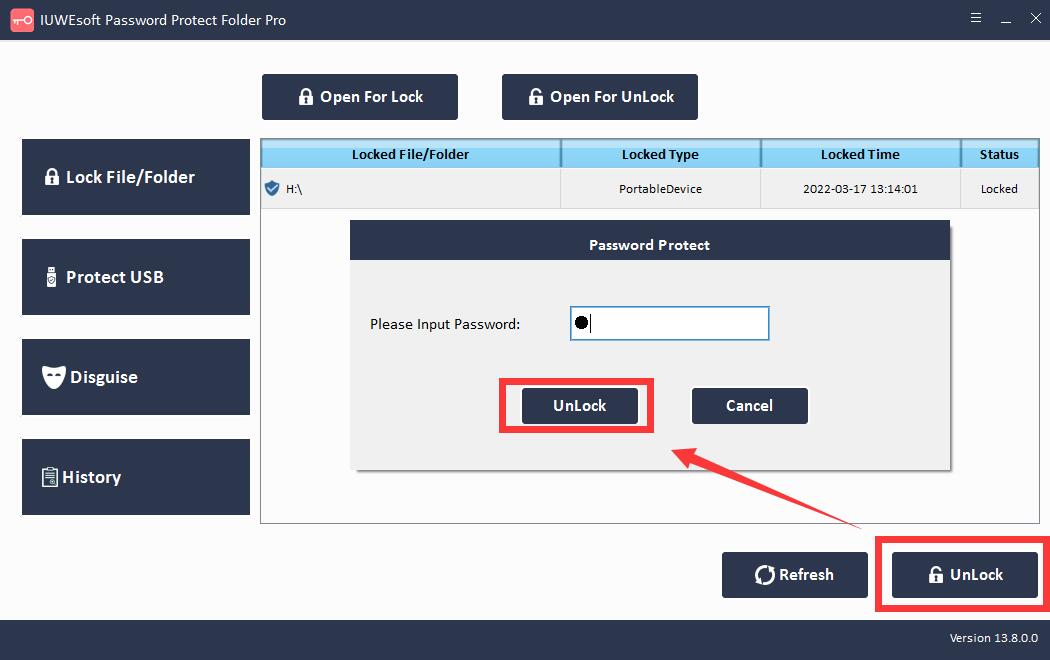
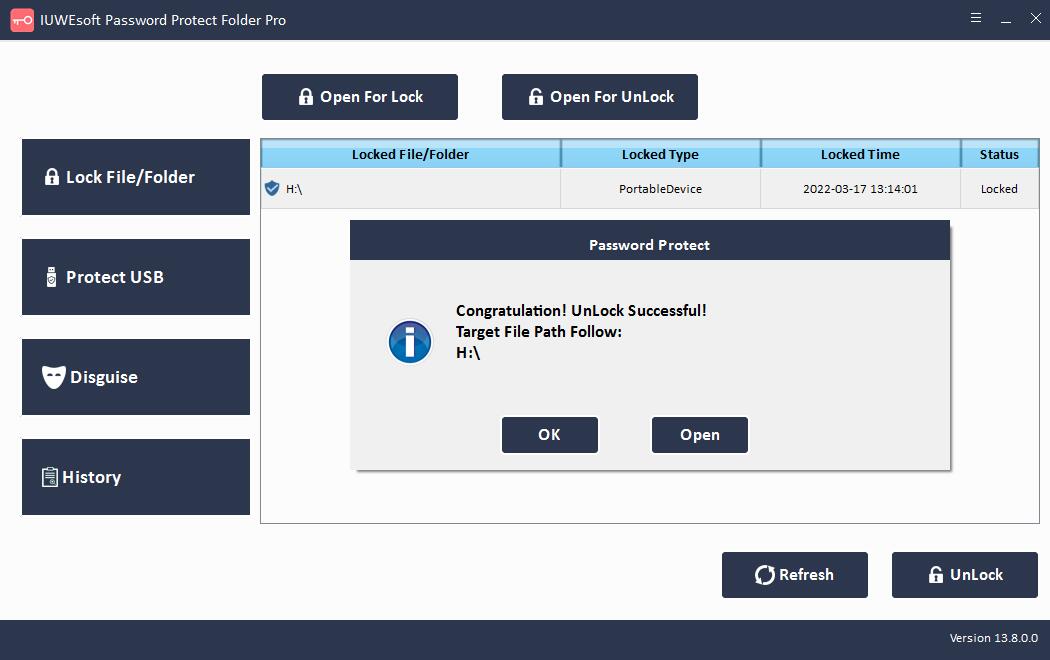
2 veiksmas: grįžkite į pagrindinę sąsają, pasirinkite užrakintą diską ir spustelėkite "Atrakinti", kad atrakintumėte USB diską.

Kaip užšifruoti USB atmintinę naudojant "BitLocker"
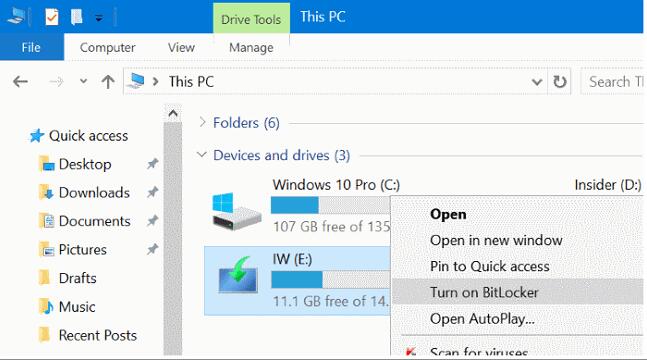
1 veiksmas: prijunkite USB diską prie kompiuterio. Eikite į Šis kompiuteris ir dešiniuoju pelės mygtuku spustelėkite USB diską, esantį skiltyje Įrenginiai ir diskai. Išskleidžiamajame meniu pasirinkite Įjungti BitLocker.
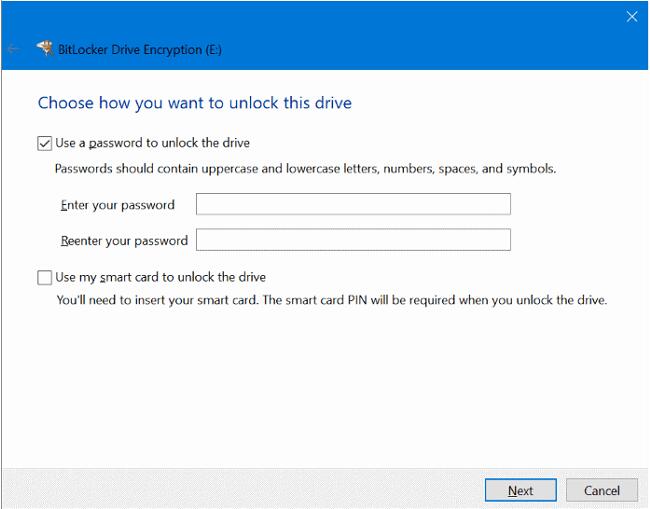
2 veiksmas: pažymėkite langelį "Naudoti slaptažodį, kad atrakintumėte diską", įveskite ir iš naujo įveskite slaptažodį. Jei reikia, nustatykite slaptažodį ir spustelėkite "Kitas".
3 veiksmas: pasirinkite būdą, kaip sukurti atsarginę atkūrimo rakto kopiją. Galite pasirinkti "Išsaugoti "Microsoft" paskyroje", "Išsaugoti kaip failą" arba "Spausdinti atkūrimo raktą". Spustelėkite "Kitas".
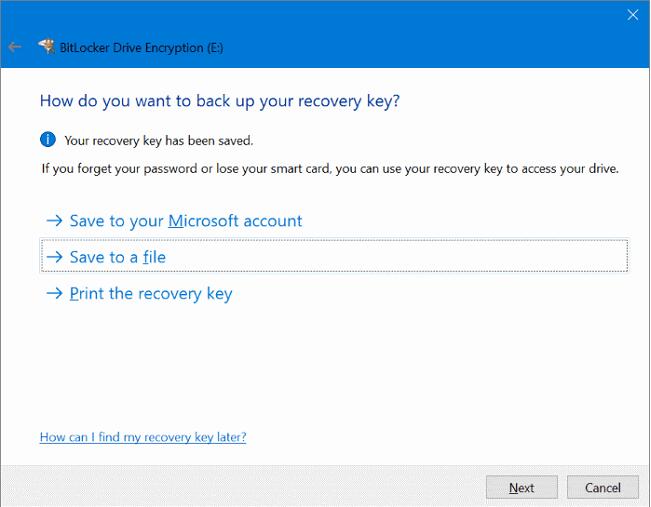
4 veiksmas: pasirinkite "Šifruoti visą diską", kad užtikrintumėte, jog visi duomenys yra apsaugoti, netgi duomenys, kuriuos ištrinate, tačiau juose vis tiek gali būti gaunamos informacijos. Tada spustelėkite "Kitas".
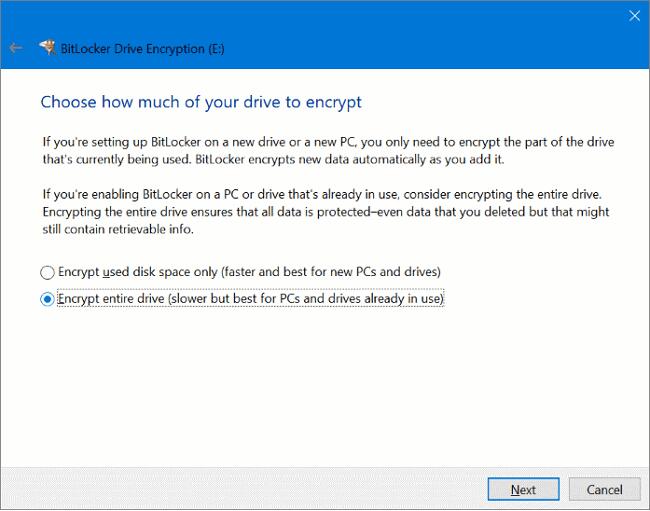
5 veiksmas: ekrane Pasirinkite norimą naudoti šifravimo režimą pasirinkite Suderinamumo režimą, tada spustelėkite "Kitas".
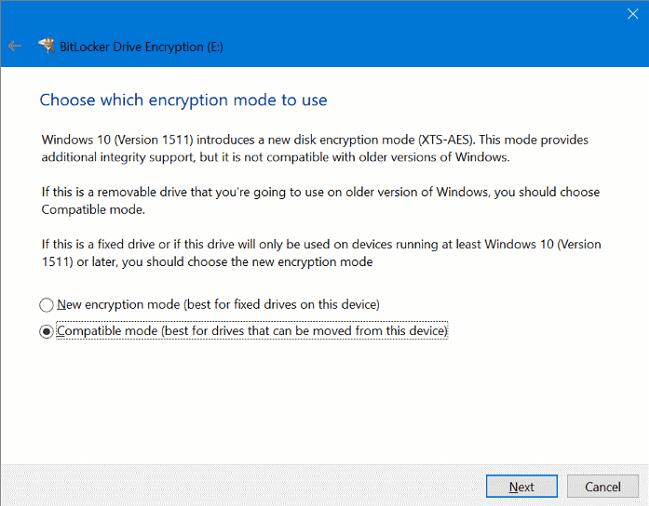
6 veiksmas: spustelėkite Pradėti šifravimą, kad leistumėte "BitLocker" užšifruoti USB atmintinę naudojant slaptažodį.

Kaip užšifruoti USB atmintinę "Mac" kompiuteryje
1 veiksmas: prijunkite USB atmintinę prie "Mac".
2 veiksmas: atidarykite Finder. Raskite ir dešiniuoju pelės mygtuku spustelėkite USB atmintinę ir pasirinkite Šifruoti USB diską.
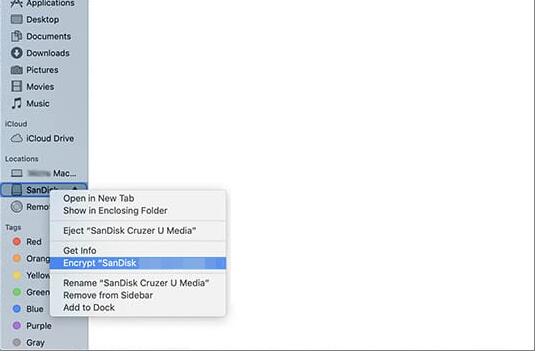
3 veiksmas: įveskite slaptažodį ir patvirtinkite. Taip pat galite pridėti užuominų, kurios padės vėliau prisiminti slaptažodžius.
4 veiksmas: pasirinkite "Šifruoti diską", kad užbaigtumėte USB disko šifravimą.