
How to Secure Files and Folders in Windows 11/10
To help you protect some confidential folders or data that cannot be revealed, Windows 11/10 offers a free file encryption scheme. Windows 11/10 allows you to protect documents and files in password-protected folders. This means that anyone trying to access your data will need a password to view files in that folder lock. Before setting up a Windows 11/10 folder lock, please note the following tips to prevent forgetting or losing your password.
1. Please write down your password and keep it in a safe place.
2. Copy the file on an external hard drive so you can access it even if you lose your password.
3. Do not create passwords with spaces.
How to Password Protect Your Files and Folders in Windows 11/10
Follow these 6 steps to password protect data on Windows 11/10:
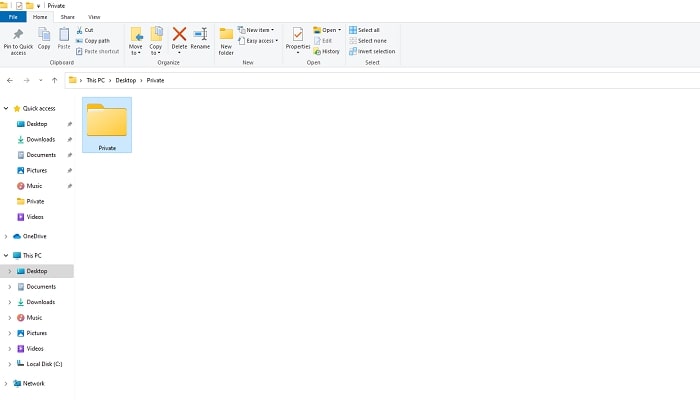
Step 1: Select your folder by right-clicking on the folder containing all the files you want to protect.
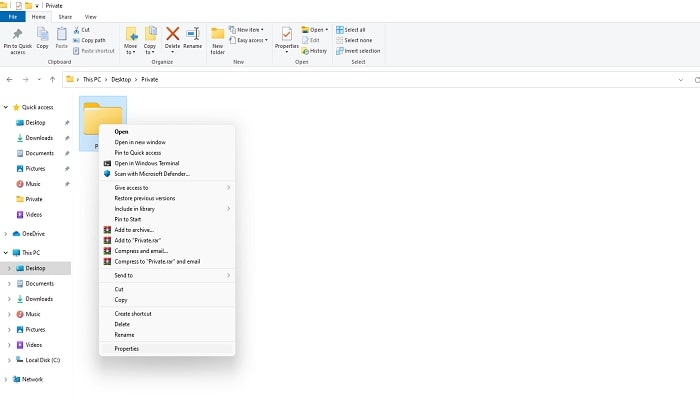
Step 2: Select Properties from the drop-down menu.
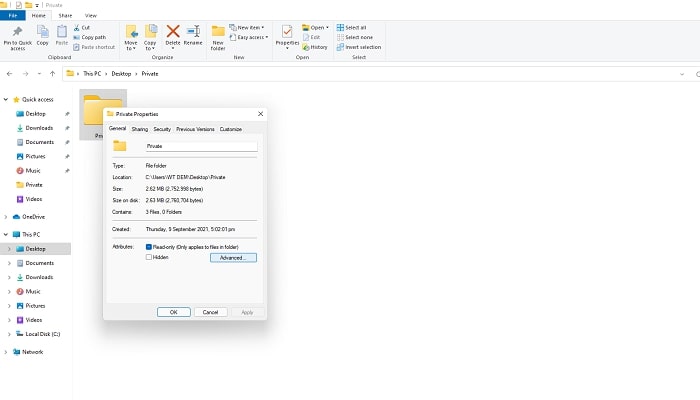
Step 3: With the general tab open, right-click the Advanced button.
Step 4: At the bottom of the advanced properties menu, select Encrypt content to protect data, and then press OK.
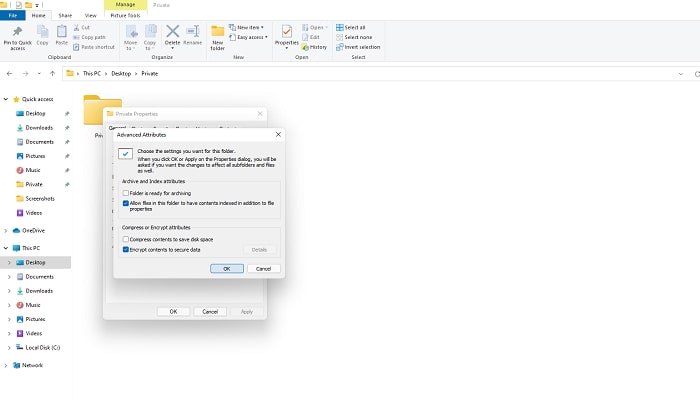
Step 5: Go back to the main window and select "Apply".
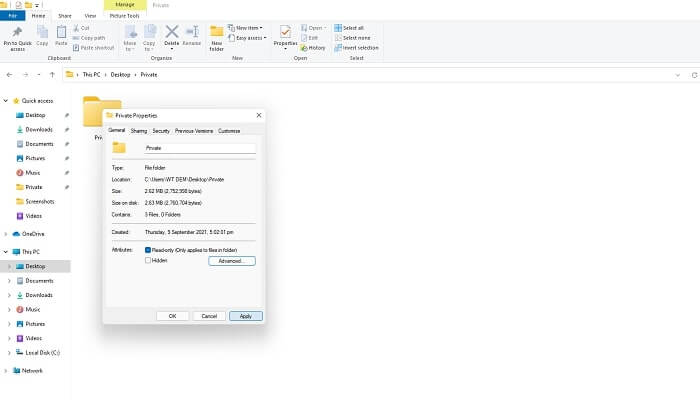
Step 6: You will receive a notification that you can create a backup of your file encryption key. Click "Back Up Now" and create a removable backup of your encrypted data.

3 Ways to Fix the issue "No Access to Folder Security" in Windows 11/10
Forgot the password for Folder Lock on your computer and can't access your encrypted important files and folders? We have listed three solutions for you to unlock and access all your data in Windows 11/10/8.1/8/7/XP/Vista.
1. Use Folder Security Alternative to Password-protect Files and Folder in Windows 11/10
To protect your sensitive data, you need software that is more secure than Windows security technology. IUWEsoft Password Protect Folder Pro is a powerful file, folder and drive password protection software, you can lock, encrypt, hide and disguise target files, folders, hard drive and external portable storage devices like SD Card, USB flash drive, Pen drive, external hard drive and so on.
1 veiksmas: paleiskite IUWEsoft Password Protect Folder Pro, įveskite galiojantį el. pašto adresą ir registracijos kodą, kad užsiregistruotumėte.
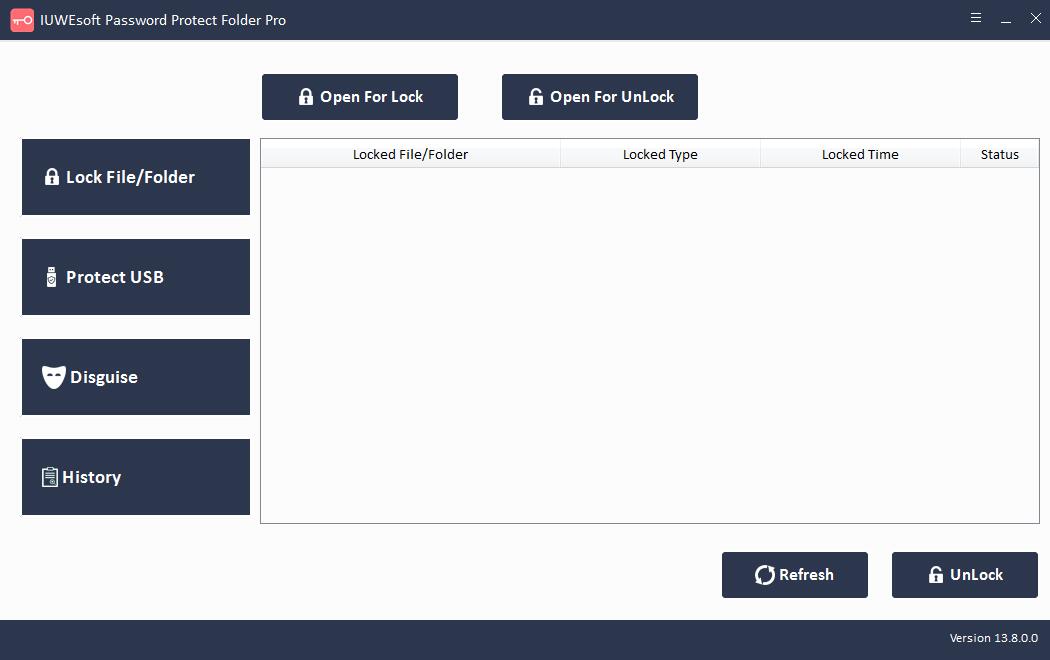
2 veiksmas: spustelėkite "Užrakinti failą / aplanką" arba "Apsaugoti USB", kad užšifruotumėte failus, aplankus ar diskus.
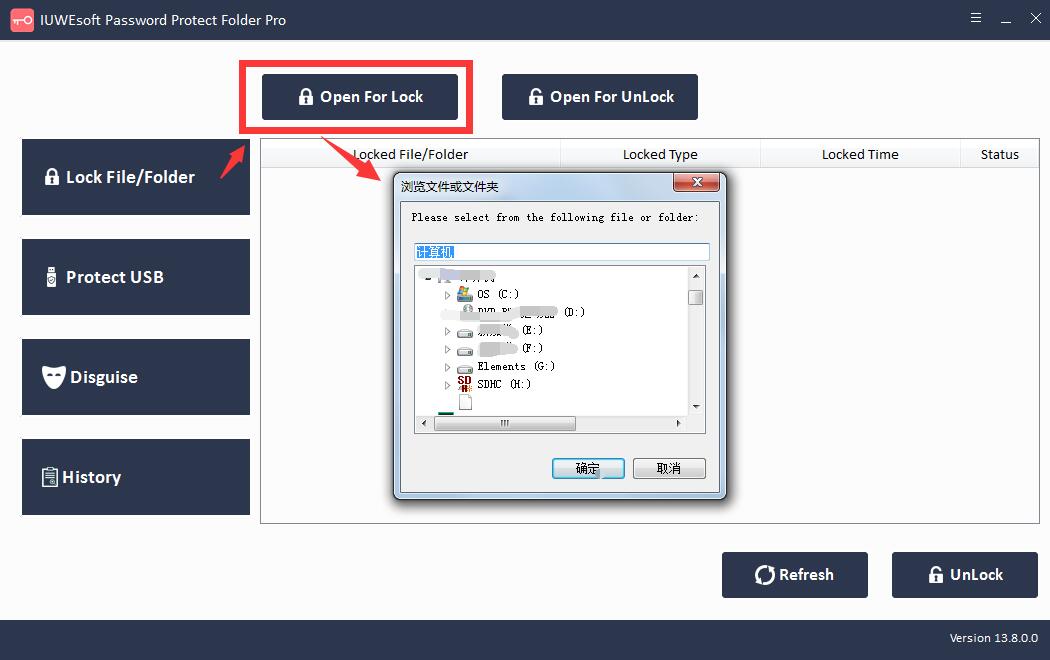
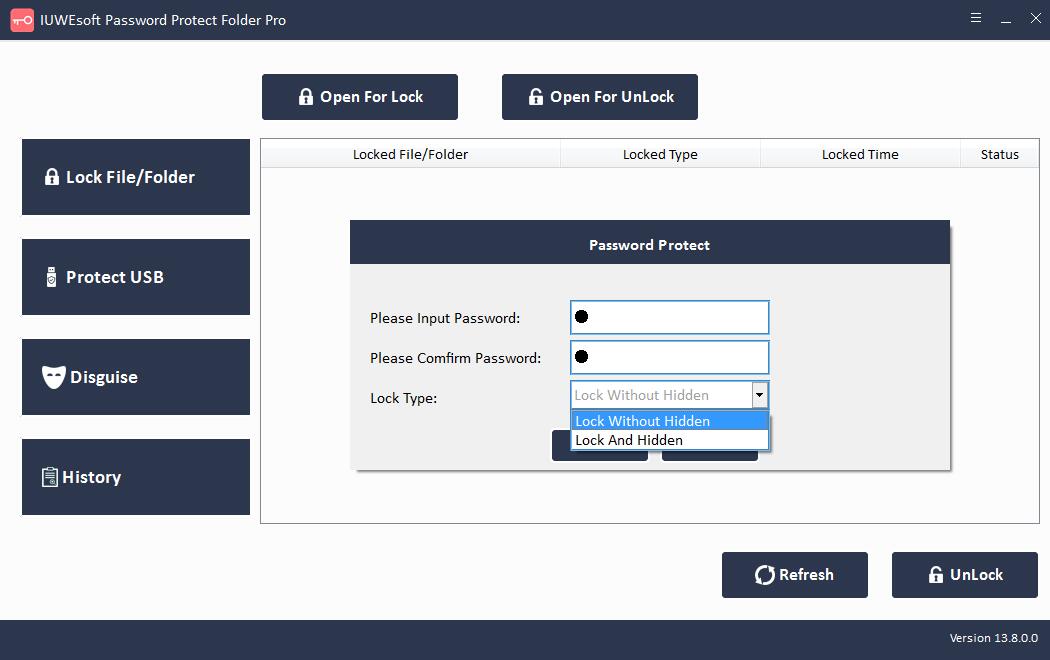
3 veiksmas: pasirinkite failą arba tvarkyklę, pasirinkite užrakto tipą, įveskite ir patvirtinkite slaptažodį ir spustelėkite mygtuką "Užrakinti".
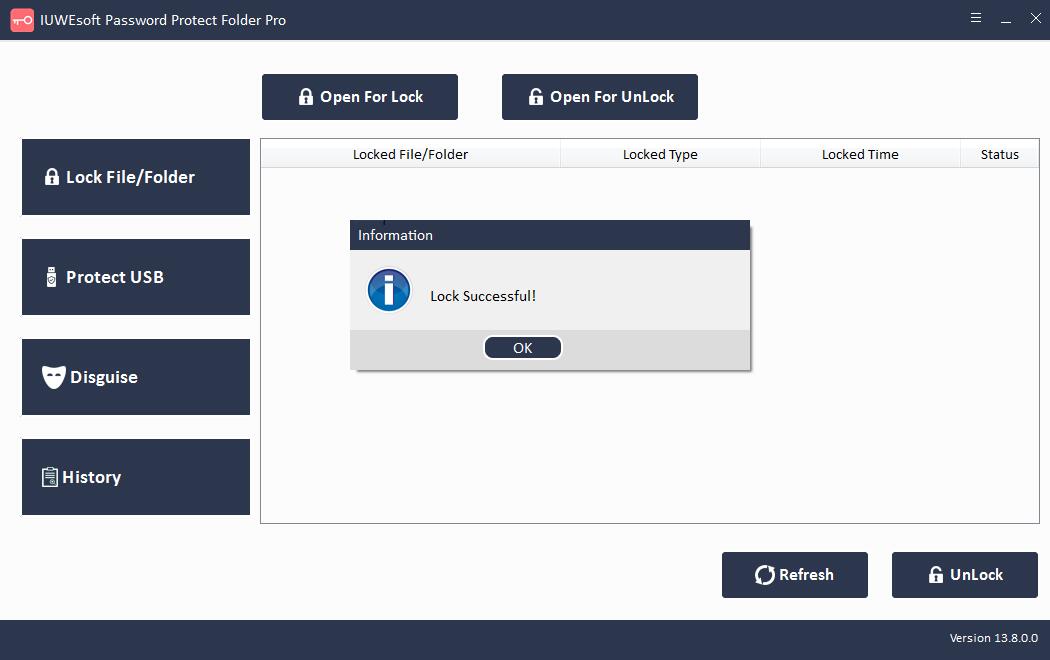
2. Norėdami atkurti saugos nustatymus, naudokite vietinės grupės strategijos rengyklę
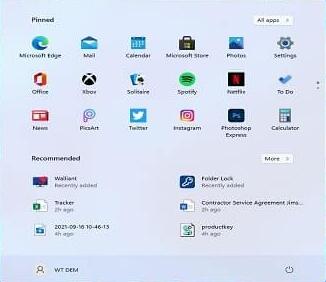
1 veiksmas: spustelėkite Pradėti, kad atidarytumėte meniu.
2 veiksmas: atidarykite vietinės grupės strategijos rengyklės konsolę ieškodami gpedit.msc.
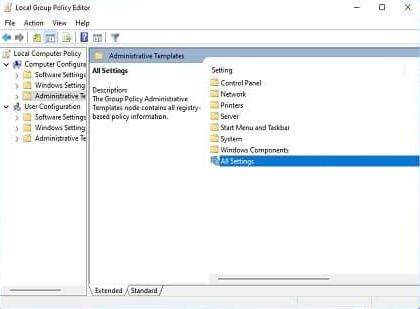
3 veiksmas: spustelėkite Kompiuterio konfigūracija, tada spustelėkite Administravimo šablonai, tada spustelėkite Visi nustatymai.
4 veiksmas: rūšiuokite ir peržiūrėkite visus įgalintus ir išjungtus nustatymus iš būsenos stulpelio antraštės.
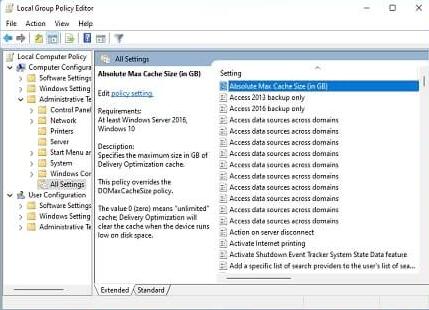
5 veiksmas: spustelėkite kairįjį pelės klavišą arba dukart spustelėkite anksčiau pakeistą politiką.

6 veiksmas: spustelėkite parinktį "Nekonfigūruota", pasirinkite "Taikyti", dabar spustelėkite "Gerai".

3. Naudokite registro rengyklę, kad nustatytumėte aplanko saugą
Registro rengyklė yra įrankis, leidžiantis įgaliotiems vartotojams peržiūrėti "Windows" registrą ir atlikti tolesnius pakeitimus. Galite naudoti registro rengyklę, kad pašalintumėte bet kokį įrankį, kuris slaptažodžiu apsaugo jūsų aplankus. Paimkite aplanko užrakto pavyzdį, kad sužinotumėte, kaip pasiekti aplanką, užrakintą šiuo įrankiu:
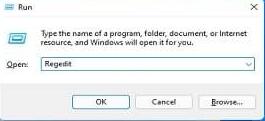
1 veiksmas: spustelėkite Pradėti ir atidarykite dialogo langą Vykdyti arba paspauskite win+R klaviatūroje ir atidarykite dialogo langą Vykdyti.
2 veiksmas: dialogo lange Vykdyti įveskite Regedit ir paspauskite Gerai. Atsidarys iššokantis dialogo langas, kuriame bus prašoma leidimo paleisti registro rengyklę.
3 veiksmas: atidarę registro rengyklę, eikite į HKEY_CURRENT_USER/SOFTWARE/NewSoftware's/Folder Lock/Uninstall.
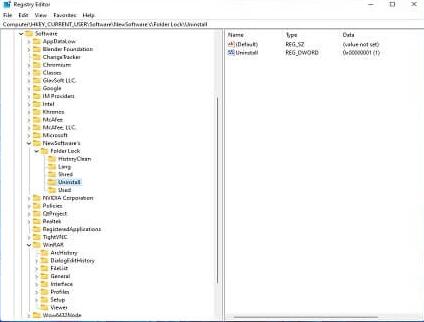
4 veiksmas: pakeiskite reikšmę iš "1" į "0", dukart spustelėdami Pašalinti, dabar pasirinkite "Gerai".

5 veiksmas: uždarykite registro rengyklę ir užbaikite visas vykdomas užduotis, programas ir programas iš užduočių tvarkytuvės. Dabar skiltyje "Programos ir funkcijos" raskite "Folder Locker" ir spustelėkite "Pašalinti".